Monday, June 21, 2010

Churchill Speeches Audiobook

The older I get the more I'm intrigued by history.  The Churchill Speeches Audiobook for iPad app recently caught my eye and the 99-cent price was irresistible.

The app is what it sounds like: a collection of audio recordings from many of Winston Churchill's speeches during World War II.  There's nothing remarkable about this as an iPad app though.  In fact, I'm kind of surprised the developers didn't first release it as an iPhone app and just make it available for use on the iPad.  They went the opposite route though as this one is only available as an iPad app.  Odd.

So what do you do when your app is really about audio and you have that nice, large iPad app screen at your disposal?  You offer some totally unrelated, cheesey background images.  Listeners can opt for one of five different backgrounds including my personal favorite, the video loop of someone's fireplace.

Don't let the goofy video chase you away from this one though.  I've only listened to a few of the speeches so far and I love it, although I do wish I could use it on my iPhone.  I'd also like to see them release similar apps with the amazing speeches from people like FDR, JFK and Martin Luther King, Jr., for example.

Tuesday, June 8, 2010

Pulse

The Pulse newsreader app is terrific.  Or I should say, was terrific.  The New York Times apparently thought it was a bit too good and recently arranged to have Apple remove it from iTunes.  Apple and the NY Times need to reconsider this decision.  And if the Times feels Pulse was stealing too many of their eyeballs, well, maybe they ought to introduce an iPad app of their own!  Please don't tell me they already have with that limited Editor's Choice app; I'm ready to pay for a full Times subscription on my iPad and these knuckleheads still don't have anything to offer!

OK, I'll stop ranting and tell you why I like the Pulse app and why, if you didn't buy it before it was removed, you should hope it's reinstated as well.  Pulse is nothing more than a tool that lets you work with RSS feeds visually rather than just a bunch of text.

One of the biggest complaints about it is that it only supports up to 20 feeds.  I considered that a strength.  Why?  Because I long ago abandoned my RSS reader due to the fact that every time I opened it I was staring at hundreds and hundreds of unread items.  It just became too depressing to sift through.  So by only having access to 20 feeds I'm forced to pick the best of the best.  And in the short time I've had Pulse, I've dropped a few feeds to make room for others.  Would I prefer they lift the ceiling to, say, 50 feeds?  Sure, but I can live with 20.  I find I'm keeping up with my limited number of feeds now, much more so than when they were buried in the several hundred I had in Google Reader.

One final point about Pulse that I've discovered: It's most effective for those feeds that feature graphical elements.  Text-only feeds look pretty dull in it.

It's too bad that the Times and Apple had to intervene with this one.  It's a great app and one that is well-suited for the iPad.  As one commenter noted in that Wired article linked to above, "don't worry -- the old people in charge who don't understand the internet will slowly die off and then we'll be good to go."  (Be sure to read all the comments on that article...there are some gems!)

Tuesday, June 1, 2010

My Homemade iPad Stylus

After watching this video last week I decided to create my own iPad stylus (finished results are pictured on the left).  It looked pretty easy, the parts seemed simple to find and I've been looking to put that Penultimate app to work that I bought recently (it's just not that useful to me without a stylus).

I first set out to find a suitable drafting pencil, or, as they call them in the art world, a "lead holder."  You can't just use a simple mechanical pencil because you need a large enough opening to accommodate the diameter of a Qtip stem.  Staples was my first stop, but they don't carry them in the store (you have to order them online).  I next tried a local art supply store but they were out.  They recommended another one and I finally found one for about $8.

If you watch that video I linked to earlier you'll see the only other items you need are glue, Qtips and conductive foam.  Huh?  What's conductive foam?  As the video shows, it's the stuff you usually find computer chips shipped on.  I didn't have any of that stuff handy so I headed over to my local Fry's.  They sell one-foot square pieces for $7.99.  Trust me when I tell you that a square foot of this is a lifetime supply for iPad stylus construction.

The Qtips used in that video have plastic blue hollow stems.  I opted for the solid (cardboard) stemmed ones though and I'm glad I did.  After cutting the heads off a few Qtips, I cut small pieces of the conductive foam and started playing around with creating holes in the foam wide and deep enough to insert the stem of the Qtip into.  This was a bit of trial and error but I quickly discovered it's best to use a tiny screwdriver and create openings in the foam, not force the Qtip stems in.

The foam fit so snugly around the stems that I didn't bother gluing.  I just trimmed some of the foam away to make the type of stylus head I wanted.  I made a half dozen of them and tried each one out.  Writing with one of these takes some getting used to, mostly because you're pressing squishy foam against the iPad screen.  I'm very happy with the results though and I plan to carry a few of these with me everywhere I go.

So it's goodbye to my Moleskine notebooks and hello to the Penultimate app with stylus.  If Moleskine were smart, they'd create an app like Penultimate but with their own branding and other touches to remain relevant in the iPad world.  The image in the bottom left corner of this post was made using my new stylus, btw; the lousy handwriting is all mine, so don't blame that on the stylus!

Monday, May 24, 2010

The Penultimate App

Apple has been careful not refer to the iPad as a tablet device.  That's what it looks like though and there have been plenty of times when I wished it had a stylus.  I'd love to ditch the Moleskine I carry around for note-taking but there's no way I'm going to type it all on my iPad using the virtual keyboard.  I'd also rather avoid carrying a Bluetooth keyboard as that defeats the iPad's main purpose of simple portability.

How about just letting me write on the iPad screen with a stylus?  Unfortunately the iPad's terrific touchscreen display doesn't respond to a plastic-tipped stylus.  No, you need a capacitive stylus for the iPad/iPhone displays.  I suppose we'll see more of these in stores but so far I haven't found any at Fry's or BestBuy.  I could purchase one online but the reviews are mixed at best.

The good news is that when I find a great capacitive stylus I'll already have a great companion app installed for it on my iPad.  Penultimate is the perfect paper replacement.  With multiple paper formats, named notebooks and the ability to quickly email a page or an entire notebook, this app is just what I need.  And it's only $2.99, although the app's description page makes it sound like that could be a limited-time introductory price, so get it while it's cheap!

Just don't expect to ditch your notebook without a capacitive stylus.  Writing with your fingertip is far from easy.  It's not how we learned to write so the results are generally pretty poor, or at least they have been for me.

A couple of months ago I wrote a post here about how Livescribe would be an outstanding technology to marry up with the iPad.  Penultimate is no Livescribe replacement but it's a good start.  All they need to do is add functionality to convert handwritten notes to digital text and integrate an audio recording feature that syncs with written notes.  OK, neither one of those are simple additions but I'd love to see them try; and they could charge a lot more than $2.99 if they pull it off!

Monday, May 17, 2010

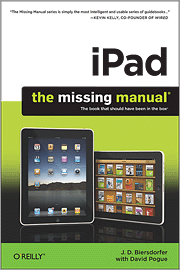
iPad: The Missing Manual

It's time for an unabashed plug for one of our company's newest products.  In fact, although it's not back from the printer just yet, the ebook version of iPad: The Missing Manual should be available to purchase and download later this week.

Early access to O'Reilly ebooks is one of the many fringe benefits of my job.  I've been enjoying a PDF version of this one since last Friday.  Author J.D. Biersdorfer has done a terrific job providing all the iPad info you need; this product truly is "the book that should have been in the box"!

Btw, here's a tip of my own...not something from the book but rather something I've learned while reading the book...  The ePub version of this Missing Manual isn't quite ready yet, so I've been reading the PDF version on my iPad.  I didn't purchase a separate PDF reader app though.  I've been using the GoodReader iPad app for awhile now, mostly for Google Docs access.  GoodReader also lets you read PDF files and it's been a great solution while I wait for the ePub file, which I'll be able to load directly in my iBooks library.  If you use Google Docs or read lots of PDFs it's hard to go wrong with the 99-cent GoodReader app.  Highly recommended.

Monday, May 10, 2010

iPad Lessons Learned in Germany

I spent last week in Munich on business and had a terrific time with several O'Reilly colleagues.  This was my first overseas trip with my iPad and I wanted to share a few of the things I learned along the way.

iPad battery life rocks!  Despite plenty of use in each direction the battery indicator never dropped below 60% on the 10-hour flights.  No, I didn't use the iPad for a full 10 hours on either of the long flights -- how long can you really stare at one screen?!  But I watched 2 movies on the way back, spent another 2-3 hours reading documents and I still wound up with a 66% charge by the time I landed.  Remarkable.  Btw, it almost seemed like watching video actually ate up less battery than reading.  After that first movie I still had a 90% charge left.

Apple's movie rental terms are stupid.  You can rent most movies for $2.99, which means you have access to them for 30 days.  Once you start watching a movie you have 24 hours to finish before it magically disappears from your iPad.  I'm betting this is more the movie studio's fault than Apple's, but this is a dumb model.  Why force me to finish the movie in 24 hours?  Why not just let me watch it as many times as I want in that 30-day window?  Would that adversely affect the income stream?  No.  As a result, I was always a bit concerned about whether I'd have enough time in the next 24 hours to finish any movie I started.  That shouldn't matter.  Once more international flights have wifi service rentals will be a much less attractive alternative to streaming.  Curiously enough, my Delta flights between Atlanta and Munich didn't have wifi but the ones between Indianapolis and Atlanta did.  Go figure.

Wikipanion Plus is a must.  No travel guide for me.  I simply bought the Wikipanion Plus app and downloaded a bunch of Munich- and Germany-related articles.  The Plus version of the app features an offline reader mode, so all those articles I pulled down were always available, regardless of my connection status.  This app is terrific.  The articles are well-formatted and include all the tables, charts and images you see on the wikipedia page.  I'm going to get a lot of use out of this one.

GoodReader is a bargain.  Do you use Google docs?  If so, cough up 99 cents for the GoodReader iPad app.  It's a gem that lets you view your Google docs while you're offline.

Make sure you've got a good wifi hotspot strategy before you leave home.  I thought I had a good plan but Verizon "challenges" left me without a connection for a couple of days.  Free hotspots are pretty rare in Germany, at least throughout the area of Munich where I was staying.  Hotels know they've got you over a barrel so they charge a small fortune for daily access.  My Verizon 3G card worked well...when it worked...but connections were often weak, generally no more than half strength.  I used that Verizon connection on my MacBook Pro as a hotspot for my iPad.  Even that solution was spotty as my iPad dropped the signal every minute or two and then had to be manually reconnected.  This, despite the fact that the two devices were no more than 10 feet away from each other.

The iPad is too small?  I don't think so but two of my coworkers made that comment.  One is from the U.K. and the other from Germany.  They both had seen iPad ads and were expecting a screen that was roughly the size of an 8-1/2 X 11" piece of paper, if not larger.  Once they played around with it a bit they both seemed to like the look and feel of the real device though.

Pity the poor Nook owner.  While waiting to check into my hotel I found myself sitting next to a Nook owner.  Her friend asked her how she liked her "Kindle" and was immediately corrected by the Nookie.  She went on to say she selected the Nook over the Kindle "because it lets me share books with my friends."  Yikes.  That means she actually knows somebody else with a Nook!  I couldn't resist sliding my iPad out of my bag to start reading next to her.  Yeah, that's right.  I noticed the envious glance and buyer's remorse in her eyes! :-)

Monday, May 3, 2010

Highlighting Offline Pages

I blogged earlier about my favorite iPad app, Offline Pages.  I've found it to be a lifesaver on long plane rides...provided I take the time to save pages before the cabin door closes.

The more I use Offline Pages though the more I realize it's missing a key feature: highlighting and note-taking.  Many of the pages I've saved have interesting excerpts or items I want to blog about or comment on when my connection is restored.  There's no way for me to highlight and annotate in the Offline Pages app though and I don't see this functionality in Instapaper either.  Given that you're working with an offline version of the page in both of these products I'm thinking it would be fairly easy to add highlighting and note-taking features to both apps.

Offline Pages and Instapaper Pro is $5 but if either one of these implements comments and note-taking I'd be more than happy to pay $5 or even $10 for added convenience.