Monday, May 24, 2010

The Penultimate App

Apple has been careful not refer to the iPad as a tablet device.  That's what it looks like though and there have been plenty of times when I wished it had a stylus.  I'd love to ditch the Moleskine I carry around for note-taking but there's no way I'm going to type it all on my iPad using the virtual keyboard.  I'd also rather avoid carrying a Bluetooth keyboard as that defeats the iPad's main purpose of simple portability.

How about just letting me write on the iPad screen with a stylus?  Unfortunately the iPad's terrific touchscreen display doesn't respond to a plastic-tipped stylus.  No, you need a capacitive stylus for the iPad/iPhone displays.  I suppose we'll see more of these in stores but so far I haven't found any at Fry's or BestBuy.  I could purchase one online but the reviews are mixed at best.

The good news is that when I find a great capacitive stylus I'll already have a great companion app installed for it on my iPad.  Penultimate is the perfect paper replacement.  With multiple paper formats, named notebooks and the ability to quickly email a page or an entire notebook, this app is just what I need.  And it's only $2.99, although the app's description page makes it sound like that could be a limited-time introductory price, so get it while it's cheap!

Just don't expect to ditch your notebook without a capacitive stylus.  Writing with your fingertip is far from easy.  It's not how we learned to write so the results are generally pretty poor, or at least they have been for me.

A couple of months ago I wrote a post here about how Livescribe would be an outstanding technology to marry up with the iPad.  Penultimate is no Livescribe replacement but it's a good start.  All they need to do is add functionality to convert handwritten notes to digital text and integrate an audio recording feature that syncs with written notes.  OK, neither one of those are simple additions but I'd love to see them try; and they could charge a lot more than $2.99 if they pull it off!

Monday, May 17, 2010

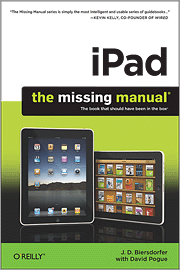
iPad: The Missing Manual

It's time for an unabashed plug for one of our company's newest products.  In fact, although it's not back from the printer just yet, the ebook version of iPad: The Missing Manual should be available to purchase and download later this week.

Early access to O'Reilly ebooks is one of the many fringe benefits of my job.  I've been enjoying a PDF version of this one since last Friday.  Author J.D. Biersdorfer has done a terrific job providing all the iPad info you need; this product truly is "the book that should have been in the box"!

Btw, here's a tip of my own...not something from the book but rather something I've learned while reading the book...  The ePub version of this Missing Manual isn't quite ready yet, so I've been reading the PDF version on my iPad.  I didn't purchase a separate PDF reader app though.  I've been using the GoodReader iPad app for awhile now, mostly for Google Docs access.  GoodReader also lets you read PDF files and it's been a great solution while I wait for the ePub file, which I'll be able to load directly in my iBooks library.  If you use Google Docs or read lots of PDFs it's hard to go wrong with the 99-cent GoodReader app.  Highly recommended.

Monday, May 10, 2010

iPad Lessons Learned in Germany

I spent last week in Munich on business and had a terrific time with several O'Reilly colleagues.  This was my first overseas trip with my iPad and I wanted to share a few of the things I learned along the way.

iPad battery life rocks!  Despite plenty of use in each direction the battery indicator never dropped below 60% on the 10-hour flights.  No, I didn't use the iPad for a full 10 hours on either of the long flights -- how long can you really stare at one screen?!  But I watched 2 movies on the way back, spent another 2-3 hours reading documents and I still wound up with a 66% charge by the time I landed.  Remarkable.  Btw, it almost seemed like watching video actually ate up less battery than reading.  After that first movie I still had a 90% charge left.

Apple's movie rental terms are stupid.  You can rent most movies for $2.99, which means you have access to them for 30 days.  Once you start watching a movie you have 24 hours to finish before it magically disappears from your iPad.  I'm betting this is more the movie studio's fault than Apple's, but this is a dumb model.  Why force me to finish the movie in 24 hours?  Why not just let me watch it as many times as I want in that 30-day window?  Would that adversely affect the income stream?  No.  As a result, I was always a bit concerned about whether I'd have enough time in the next 24 hours to finish any movie I started.  That shouldn't matter.  Once more international flights have wifi service rentals will be a much less attractive alternative to streaming.  Curiously enough, my Delta flights between Atlanta and Munich didn't have wifi but the ones between Indianapolis and Atlanta did.  Go figure.

Wikipanion Plus is a must.  No travel guide for me.  I simply bought the Wikipanion Plus app and downloaded a bunch of Munich- and Germany-related articles.  The Plus version of the app features an offline reader mode, so all those articles I pulled down were always available, regardless of my connection status.  This app is terrific.  The articles are well-formatted and include all the tables, charts and images you see on the wikipedia page.  I'm going to get a lot of use out of this one.

GoodReader is a bargain.  Do you use Google docs?  If so, cough up 99 cents for the GoodReader iPad app.  It's a gem that lets you view your Google docs while you're offline.

Make sure you've got a good wifi hotspot strategy before you leave home.  I thought I had a good plan but Verizon "challenges" left me without a connection for a couple of days.  Free hotspots are pretty rare in Germany, at least throughout the area of Munich where I was staying.  Hotels know they've got you over a barrel so they charge a small fortune for daily access.  My Verizon 3G card worked well...when it worked...but connections were often weak, generally no more than half strength.  I used that Verizon connection on my MacBook Pro as a hotspot for my iPad.  Even that solution was spotty as my iPad dropped the signal every minute or two and then had to be manually reconnected.  This, despite the fact that the two devices were no more than 10 feet away from each other.

The iPad is too small?  I don't think so but two of my coworkers made that comment.  One is from the U.K. and the other from Germany.  They both had seen iPad ads and were expecting a screen that was roughly the size of an 8-1/2 X 11" piece of paper, if not larger.  Once they played around with it a bit they both seemed to like the look and feel of the real device though.

Pity the poor Nook owner.  While waiting to check into my hotel I found myself sitting next to a Nook owner.  Her friend asked her how she liked her "Kindle" and was immediately corrected by the Nookie.  She went on to say she selected the Nook over the Kindle "because it lets me share books with my friends."  Yikes.  That means she actually knows somebody else with a Nook!  I couldn't resist sliding my iPad out of my bag to start reading next to her.  Yeah, that's right.  I noticed the envious glance and buyer's remorse in her eyes! :-)

Monday, May 3, 2010

Highlighting Offline Pages

I blogged earlier about my favorite iPad app, Offline Pages.  I've found it to be a lifesaver on long plane rides...provided I take the time to save pages before the cabin door closes.

The more I use Offline Pages though the more I realize it's missing a key feature: highlighting and note-taking.  Many of the pages I've saved have interesting excerpts or items I want to blog about or comment on when my connection is restored.  There's no way for me to highlight and annotate in the Offline Pages app though and I don't see this functionality in Instapaper either.  Given that you're working with an offline version of the page in both of these products I'm thinking it would be fairly easy to add highlighting and note-taking features to both apps.

Offline Pages and Instapaper Pro is $5 but if either one of these implements comments and note-taking I'd be more than happy to pay $5 or even $10 for added convenience.

Monday, April 26, 2010

Lean Forward + Sit Back = iPad

Remember that classic SNL skit about an advertisement featuring a product that was both a dessert topping and a floor wax?  That's what I think of when I hear the pundits talk about the difference between devices that address the "lean forward" needs (e.g., computers) vs. "sit back" ones that fill our entertainment void (e.g., TVs).

Some experts have long claimed the two have never met and they never will.  They should check out an iPad.  I've finally discovered a device that lends itself to both lean forward use and sit back entertainment.  The only thing that's missing is a good keyboard.

I've already gotten a lot of use out my iPad for accessing things like Google docs and email.  I'm not sure I'd want to use it as my exclusive computing device, but I'm thinking about leaving my MacBook Pro at home on a road trip one day to see what it's like.  So if the iPad is currently a viable option for my lean forward needs, it's an even better solution for sit back use.

I was stuck in Boston's Logan airport recently and my flight home was delayed.  I realized I missed that week's episode of Modern Family (a terrific show, btw).  Logan has free wifi service, so I opened the ABC app (another gem) and watched the show right there in the terminal.  I found myself asking these two questions: First, why doesn't every TV network have an iPad app?  Second, how soon will my DVR become as useful as the 8-track player I recently saw in a relative's garage?

The keyboard is still a bit of an issue for me on the iPad though.  I go with portrait mode mostly because it lets me thumb-type like I used to on the Blackberry.  The landscape keyboard seems silly.  It's too big to thumb-type and there's no way to touch-type on a virtual keyboard.  I tried a friend's Apple Bluetooth keyboard.  It's sleek but I'm glad I didn't spend $70 on one for myself.  I found it awkward to type on my lap and then have to reach out from time to time to touch the screen.  A better solution is for someone to offer a Bluetooth keyboard the size of a Blackberry one so we can thumb-type with a physical device, not a virtual one.  I'd buy one of those because it would also (a) be something I could hold in the air, not put on my lap (fixing the awkward reach/touch problem mentioned earlier) and (b) it's tiny enough to fit in my bag without feeling like I'm lugging yet another device.

But even without the ultimate Bluetooth keyboard solution, I'm definitely finding the iPad enables convergence between lean forward and sit back.  Now if the other TV networks would just release apps I could send my DVR back to Comcast and quit paying the monthly rental fee for it!

Monday, April 19, 2010

My New Favorite App: Offline Pages

It was almost a year ago when I wrote a post on my Publishing 2020 blog about an app I'd like to buy for my Kindle.  Here's how I described the problem last June:

How many emails like this do you get each week?: "You need to read this article over on so-and-so.com. I just read it and thought it was terrific/funny/relevant/etc."  I get these all the time.  Sometimes I click the link and read the first sentence or two.  If it's good and I don't have time to read it all now I'll leave that browser tab open and hope I don't forget about it, but I often do.  If the article looks really good and I don't want to miss it I might even print it out and read it later.  None of these approaches are very effective though, especially when I also have a $360 Kindle at my disposal.

OK, if you're a glutton for punishment you'll try to access all those articles on your Kindle via Whispernet.  Good luck with that.  Even if you manage to get the page loaded you'll find the formatting and readability is awful in most cases.  And what if you're out of Whispernet range, say, on a plane?

Someone needs to write a desktop application that lets me grab a url and drag it to my Kindle, which is connected to my Mac via USB.  The app has to do more than just drag the web page to the Kindle though; it needs to convert the contents of that page to mobi format so that it looks nice and clean on the Kindle display.

Unfortunately, Amazon never opened their platform to third-party apps so nobody ever had a chance to create this type of service.  Apple's model, on the other hand, encourages third-party app extensions and I recently found the answer to my problem.

The app is called Offline Pages (iTunes link) and hands-down it's the greatest thing I've downloaded to my iPad.  Oh, and get this: The app is totally free!  (Somebody really ought to tell the developer they could easily charge five bucks for it.  Heck, I'd consider it a bargain at $10!)

The app works just like you expect it to.  You can browse the web within the app and save any page you want for later reading.  Even better: In a few short steps you can add a bookmark to Safari on your iPad and quickly save the pages through that browser instead.  Best of all: You can create a bookmarklet in your Mac/Windows browser to save the pages that way.  So if I see something cool while on my Mac, I click the bookmarklet button I installed and the next time I sync my iPad the page shows up in the app.  Outstanding!

I've got two recommendations for future enhancements.  First of all, let me say whether I just want to save this particular page or if I also want to save all the pages linked from it.  There's nothing worse than thinking you've saved an article and it was split into multiple web pages, so you only got the first piece.  For that matter, why not build the logic in to know when there's a "next page" or similar link the app should grab it too?  Second, rather than forcing me to manually sync with iTunes to move pages from my Mac to my iPad, why not do it wirelessly, either through wifi or Bluetooth?

Implement these additional features and you've got a spectacular app.  Either way, this one is already a must-have for anyone who sometimes finds themselves outside a hotspot...and who doesn't fall into that category?!

Sunday, April 18, 2010

InvisibleShield Screen Protector

I got tired of all the fingerprints and smudges shortly after I put my iPad to use.  Admit it.  Yours looks like a Petri dish covered with bacteria too, doesn't it?  You can wipe all you want, but a few taps and pinches makes it look nasty all over again.

Apple tells us we don't need screen protectors.  That's why you won't find them in the Apple Store.  Their display technology is rugged enough to stand up to scratches and nicks.  That may be true but the iPad screen is no match for the oil on all of our fingertips.

I tried finding screen protectors at my local Fry's and Best Buy last weekend.  Fry's still has no iPad-related items and two local Best Buy locations had already sold out of their screen protector shipments.  So much for Apple's claim that they're not necessary.

I got lucky yesterday though.  One of the Best Buy stores got a shipment in and I grabbed a Zagg InstallShield.  The bad news: they retail for $30.  That's right.  $30.  Someone at Zagg clearly understands the law of supply and demand.  Heck, I'm surprised they're not gouging us for $100!  (I went with front protection only, although their "full body coverage" package is only $10 more.  I just don't find myself looking at the back of this iPad very much, so I figured I could save the extra ten bucks.)

The good news is that this thing looks incredibly durable.  If you don't believe me, watch the video below.  I almost cried watching them do all that to a poor, defenseless iPad.

I've used screen protectors on my iPhone for the past couple of years but Zagg's product is the first one I've used with a spray-on applicator step.  They say it's a mostly water-based solution but I'm convinced it dramatically helps with placement and bubble removal.  I was able to apply my protector in a couple of minutes, including the time it took to squeegee off the bubbles.  I still have a few small bubbles but they're only visible when the iPad is off.

Another thing I like about the InstallShield is that it comes with a lifetime guarantee.  I placed my receipt in a safe place knowing that I'll never have to buy another iPad screen protector.

Now that it's on I can honestly say my iPad is smudge-free.  No matter how many times I tap, pinch, spread or do any other gesture, the fingerprints don't show up.  Sure, the bacteria is still there, but at least I don't get a constant visual reminder!

The screen has a slightly different feel with the InstallShield.  An uncovered screen is very slippery while the InstallShield sometimes feels like a dry, plastic surface.  So if your fingertips are dry you'll find the display isn't as smooth to drag across as it used to be.  I've already adjusted though and I almost forgot what the bare screen felt like.

Despite the high price I recommend the Zagg InstallShield.  I feel much better about taking my iPad out in public, both because it's more likely to resist scratches and because it no longer looks a DNA-coated prop from the set of CSI.